vee-validate 3から4にアップグレードする

APIが完全に変わったため、マイグレーションガイドは存在しないらしい。変更点のメモを残しておく。

vee-validate 3の依存関係

"vee-validate": "^3.4.13",

vee-validate 4の依存関係

"@vee-validate/i18n": "^4.5.10",
"@vee-validate/rules": "^4.5.10",
"vee-validate": "^4.5.10",

vee-validate 3の初期設定

import Vue from "vue"
import { extend, localize } from "vee-validate"
import { required, max, email } from "vee-validate/dist/rules"
import en from "vee-validate/dist/locale/en.json"
import ja from "vee-validate/dist/locale/ja.json"
import enNames from '../locale/enNames.json'
import jaNames from '../locale/jaNames.json'

extend("required", required)
extend("max", max)
extend("email", email)

localize({
  en: {
    messages: en.messages,
    names: enNames
  },
  ja: {
    messages: ja.messages,
    names: jaNames
  }
})

let LOCALE = "ja"

Object.defineProperty(Vue.prototype, "locale", {
  get() {
    return LOCALE
  },
  set(val) {
    LOCALE = val
    localize(val)
  }
})

vee-validate 4の初期設定

import { defineRule, configure } from 'vee-validate';
import { required, max, email } from '@vee-validate/rules';
import { localize, setLocale } from '@vee-validate/i18n';
import en from '@vee-validate/i18n/dist/locale/en.json';
import ja from '@vee-validate/i18n/dist/locale/ja.json';
import enNames from '../locales/enNames.json'
import jaNames from '../locales/jaNames.json'

defineRule('required', required)
defineRule('max', max)
defineRule('email', email)

const customLocalize = localize({
  en: {
    messages: en.messages,
    names: enNames
  },
  ja: {
    messages: ja.messages,
    names: jaNames
  }
})

setLocale('ja')

configure({
  generateMessage: customLocalize
})

vee-validate 3の使用方法

<template>
  <ValidationObserver
    ref="observer"
    v-slot="{ passes }"
  >
    <el-form
      ref="form"
      class="login"
    >
      <h2>Sign up</h2>
      <ValidationProvider
        name="username"
        rules="required|max:16"
        v-slot="{ errors }"
      >
        <el-form-item
          :error="errors[0]"
          class="input-form-wrapper"
        >
          <el-input
            type="text"
            placeholder="Username"
            v-model="username"
          />
        </el-form-item>
      </ValidationProvider>
      <el-button
        type="primary"
        @click="passes(signup)"
      >Signup</el-button>
<script>
import { ValidationProvider, ValidationObserver } from "vee-validate"

export default {
  components: {
    ValidationProvider,
    ValidationObserver
  },
  methods: {
    signup: function () {
      const { username, password, email } = this

vee-validate 4の使用方法

※vee-validate以外にも、element-uiからelement-plusに変更している。element-plusの変更点については、こちらを参照のこと。

<template>
  <Form
    as="el-form"
    :validation-schema="schema"
    @submit="onSubmit"
  >
    <h2>Sign up</h2>
    <Field
      name="username"
      v-slot="{ value, field, errorMessage }"
    >
      <el-form-item
        :error="errorMessage"
        class="input-form-wrapper"
      >
        <el-input
          type="text"
          placeholder="Username"
          v-bind="field"
          :model-value="value"
        />
      </el-form-item>
    </Field>
<script setup>
import { Field, Form } from "vee-validate";

const schema = {
  username: 'required|max:16'
}

function onSubmit(values) {
  const { username, password, email } = values

記述量が減って良いと思う。
Pythonの開発環境をWSLで構築するまで

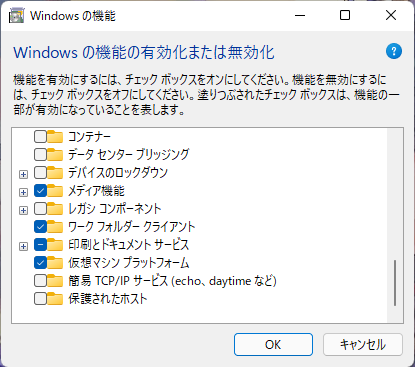
Windows の機能の有効化または無効化を開き、仮想マシンプラットフォームを有効にする。

Power Shellを管理者権限で起動する。WSL2にUbuntuの構成で良ければ以下のコマンドを実行するだけで良い。

wsl --install

Windowsの再起動後、インストールしたUbuntuを更新する。

sudo apt update
sudo apt upgrade

Pythonをインストール。

sudo apt install -y python3 python3-pip

Download Visual Studio CodeからWindows用インストーラーをダウンロードし、インストールする。

Ubuntu上で以下を実行する。

code ./<作業フォルダ>

WSLにリンクした状態でVisual Studio Codeが起動する。

Windows Subsystem for Linux 2でCUDAを使えるようにする

1.cuda toolkitをインストール

sudo apt-key adv --fetch-keys 
http://developer.download.nvidia.com/compute/cuda/repos/ubuntu2004/x86_64/3bf863cc.pub
cat <<EOF | sudo tee /etc/apt/sources.list.d/cuda.list
deb https://developer.download.nvidia.com/compute/cuda/repos/ubuntu2004/x86_64 /
EOF
sudo apt update
sudo apt install cuda-toolkit-11-5

2.libcudnn8、libncclをインストール(任意)

sudo apt-key adv --fetch-keys https://developer.download.nvidia.com/compute/machine-learning/repos/ubuntu2004/x86_64/7fa2af80.pub
cat <<EOF | sudo tee /etc/apt/sources.list.d/cuDNN.list
deb https://developer.download.nvidia.com/compute/machine-learning/repos/ubuntu2004/x86_64 /
EOF
sudo apt update
sudo apt install libcudnn8 libnccl-dev

3.動作確認

Tensorflowをインストールする。

pip install --upgrade tensorflow

以下を実行する。

from tensorflow.python.client import device_lib

device_lib.list_local_devices()

実行結果の一部に下記が表示されていれば正常に導入できている。

 name: "/device:GPU:0"
 device_type: "GPU"

Windows上にPythonの開発環境を構築する

前提

Windows Subsystem for Linuxを設定し、Ubuntuのインストールが済んでいること。

1. VSCodeをインストール

Windows版をダウンロードし、インストールする。
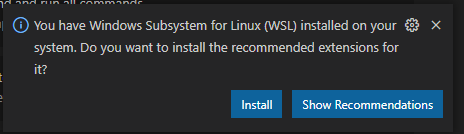
Windows Subsystem for Linuxがインストール済みであれば、初回起動時に下記が表示されるため、インストールする。

一度、VSCodeを終了し、Ubuntuコンソール上で下記を実行する。

code .

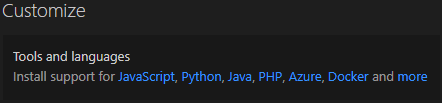
VSCodeが起動した後、下記の「Python」をクリックして、インストールする。

Python 拡張機能のインストールが完了すると、さらに下記が表示されるので、インストールする。

2. 動作確認

VSCode上で下記の通り記入したhello.pyファイルを作成する。

msg = 'Hello World'
print(msg)

Run Python File in Terminalをクリックし、実行結果が表示されれば動作確認完了。

xxx@xxx:~/test$ /usr/bin/python3 /home/xxx/test/hello.py
Hello World

Windows Subsystem for Linux 2でPythonを動かす

1. Windows Subsystem for Linuxをインストール

Windows Power Shellを管理者権限で開き、下記を実行する。

Enable-WindowsOptionalFeature -Online -FeatureName Microsoft-Windows-Subsystem-Linux

WSL 2を使用するため、仮想マシンプラットフォームを有効化する。

Enable-WindowsOptionalFeature -Online -FeatureName VirtualMachinePlatform

x64 マシン用 WSL2 Linux カーネル更新プログラム パッケージをインストールする。

デフォルトバージョンを2とする。

wsl --set-default-version 2

2. Ubuntu Linuxをインストール

Microsoft StoreからUbuntuをインストールする。

3. WSLのバージョン確認

> wsl -l -v
  NAME      STATE           VERSION
* Ubuntu    Running         2

4. Pythonのバージョン確認

Ubuntuをインストールした場合、Python3が既にインストールされている。

$ python3 --version
Python 3.8.5

Token authentication requirements for Git operations

Githubから以下のようなメールが届いた。どうやら、2021/8/13でパスワードによる認証が出来なくなるらしい。

[GitHub] Deprecation Notice
Basic authentication using a password to Git is deprecated and will soon no longer work.
※詳しくはこちらのURLを参照。

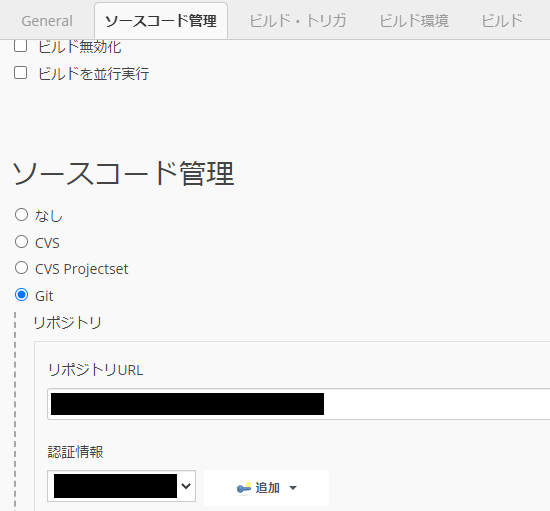
当方ではEclipseでpush/pullするときにパスワード認証を使用しているので、Token authenticationを使用するように変更する。(Jenkinsでパスワード認証を使用している場合も同様の設定が必要になる)

Github側の設定

  1. Settings > Developer settingsのPersonal access tokensを開き、Generate new tokenをクリックする。
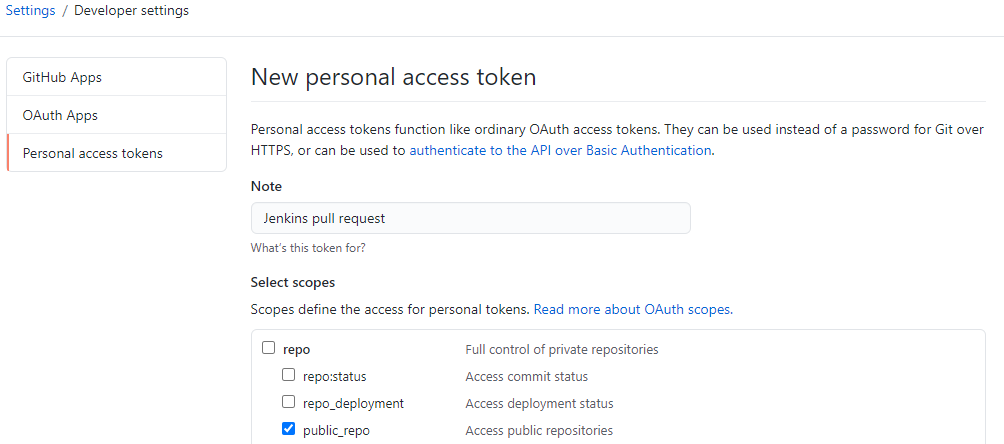
  2. 必要な権限にチェックを入れ、Generate tokenをクリックする。
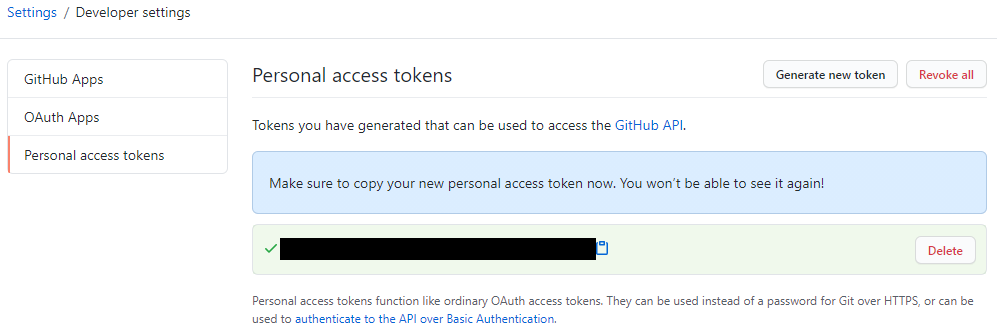
  3. 作成されたtokenをコピーしておく。

Jenkins側の設定

  1. プロジェクトの設定画面を開き、認証情報の追加をクリックする。
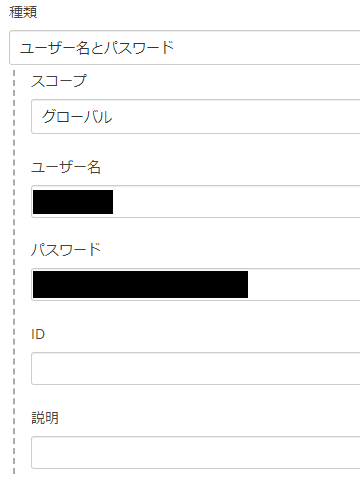
  2. 先ほどコピーしたTokenをパスワードに入力する。

Eclipse側の設定

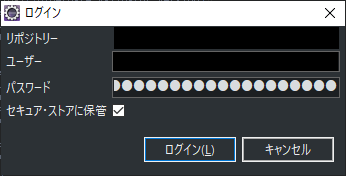
  1. 先ほど生成したTokenをパスワードに入力する。

Eclipse起動構成の移行方法

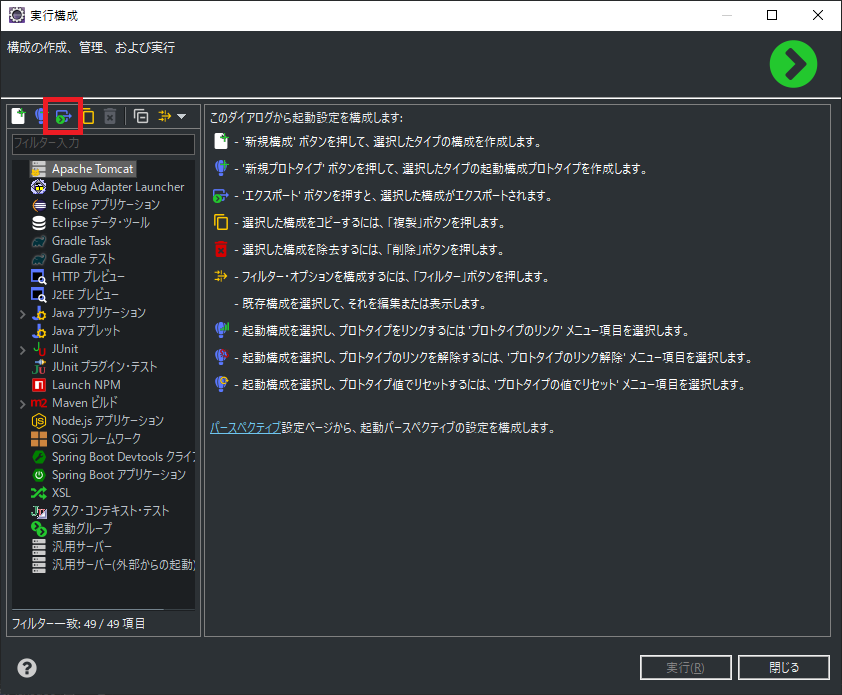
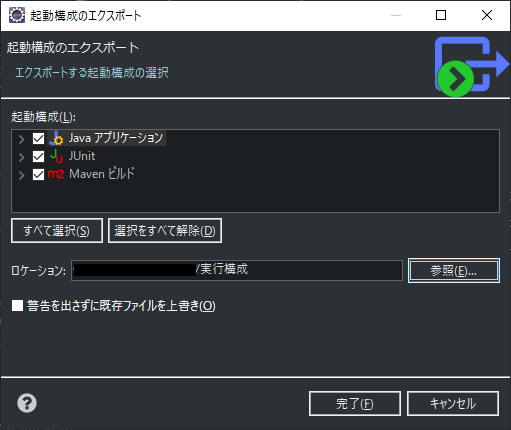
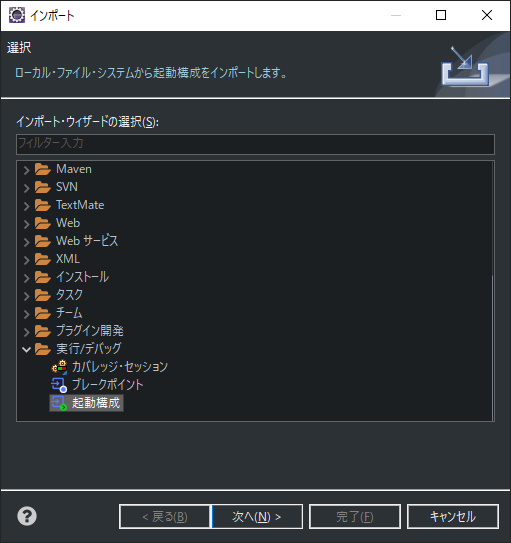
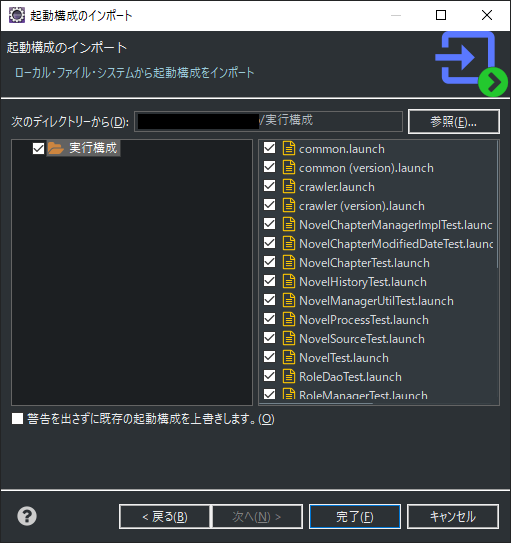
起動構成のエクスポートは実行構成のウィンドウにボタンがあるので分かりやすかったのだが、インポートが分かりづらかったので、メモを残しておく。

エクスポート方法

1.メニューの実行>実行構成をクリックする。
2.左上のエクスポートボタンをクリックする。

3.保存先、エクスポート対象を選んで完了をクリックする。

インポート方法

1.メニューのファイル>インポートをクリックする。
2.インポート・ウィザードから起動構成を選択して、次へをクリックする。

3.起動構成を保存してあるフォルダを選択し、インポート対象を選び完了をクリックする。

vue/cliを3.xから4.xにアップグレードする

最新バージョンを確認する。

D:\>npm outdated
Package                 Current  Wanted  Latest  Location
@vue/cli-plugin-babel    3.12.1  3.12.1   4.1.1  crawler-client
@vue/cli-plugin-eslint   3.12.1  3.12.1   4.1.1  crawler-client
@vue/cli-service         3.12.1  3.12.1   4.1.1  crawler-client

メジャーバージョンは、npm updateでは更新されないので、以下のコマンドを実行する。

D:\>vue upgrade
  Gathering package information...
  Name                    Installed       Wanted          Latest          Command to upgrade
  @vue/cli-service        3.12.1          3.12.1          4.1.1           vue upgrade @vue/cli-service
  @vue/cli-plugin-babel   3.12.1          3.12.1          4.1.1           vue upgrade @vue/cli-plugin-babel
  @vue/cli-plugin-eslint  3.12.1          3.12.1          4.1.1           vue upgrade @vue/cli-plugin-eslint
? Continue to upgrade these plugins? (Y/n) Y

他にも、

Package            Current  Wanted  Latest  Location
eslint              5.16.0  5.16.0   6.7.2  crawler-client
eslint-plugin-vue    5.2.3   5.2.3   6.0.1  crawler-client
sass-loader          7.3.1   7.3.1   8.0.0  crawler-client

などを個別にアップグレードする場合は、以下のコマンドを実行する。

D:\>npm install --save-dev sass-loader@8

以下のようにワーニングが出た場合は指示に従ってインストールする。

npm WARN sass-loader@8.0.0 requires a peer of node-sass@^4.0.0 but none is installed. You must install peer dependencies yourself.
npm WARN sass-loader@8.0.0 requires a peer of fibers@>= 3.1.0 but none is installed. You must install peer dependencies yourself.

D:\>npm install --save-dev sass fibers

Spring Tool Suite(Eclipse)のデフォルトのworkspaceを変更出来ない時の対処法

Spring Tool Suiteの設定を変更してもworkspaceが、 「~/Documents/workspace-spring-tool-suite-4-4.4.0.RELEASE」から変更できない場合は、 インストールフォルダ下のconfiguration\config.iniファイルを開き下記1行を削除すれば良い。

osgi.instance.area.default=@user.home/Documents/workspace-spring-tool-suite-4-4.4.0.RELEASE

Coverallsをopenjdk11環境で使用する

ビルド環境をopenjdk11に変更したら、coveralls-maven-pluginが落ちてしまって、Coverallsのカバレッジが更新されなくなっていた。

coveralls-maven-pluginに以下の依存関係を追加することで回避することが出来る。

<dependencies>
    <dependency>
        <groupId>javax.xml.bind</groupId>
        <artifactId>jaxb-api</artifactId>
        <version>2.3.1</version>
    </dependency>
</dependencies>

本家がJava11に対応してくれるのが一番良いのだが、忙しいみたいでいつ対応されるかわからない。